EssaysMay 27
Inbox Zero Is the Wrong Goal for Busy Founders
Why founders should optimize email for consequence, commitments, and visible risk instead of an empty inbox.
Smashmail Team8 min
A practical Gmail setup for keeping next moves, waiting threads, and low-priority noise in their proper places.
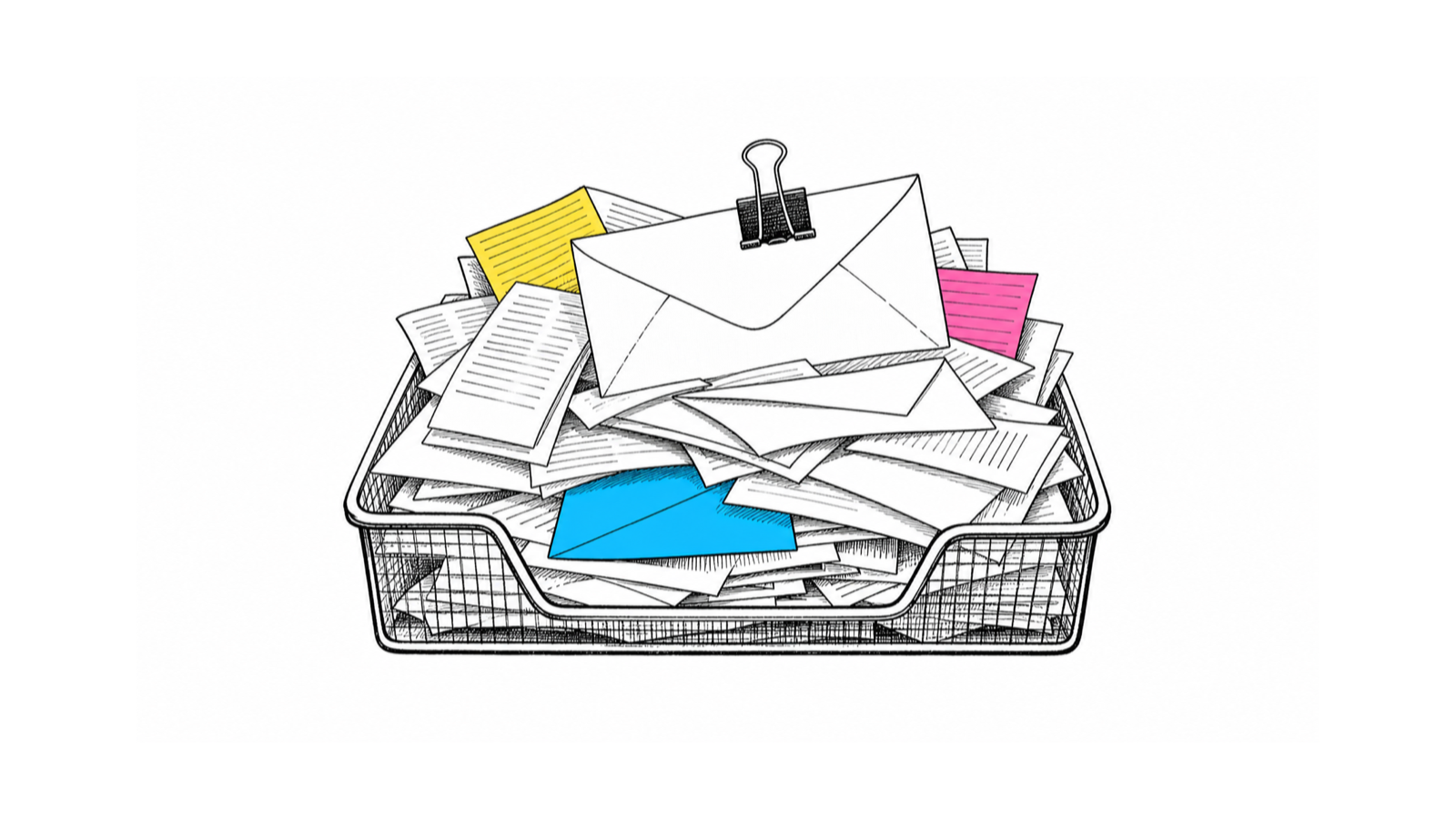
Open Gmail after a morning of calls and the inbox looks democratic in the worst possible way: a client approval, a calendar update, a product alert, a newsletter, an investor reply, and a receipt all get the same strip of screen.
Gmail is doing what an inbox usually does. Newer messages rise. Older threads sink. Labels, tabs, stars, filters, and importance markers help, but they do not automatically answer the operating question that matters most: who owns the next move?
That is why important Gmail threads get buried even in accounts that look organized. The useful setup is not a bigger label tree. It is a small state model that separates four kinds of email: threads where you owe a response, threads where you are waiting, relationships that should stay visible, and low-priority mail that should remain searchable without sitting in the main path.
The answer is more Gmail labels, more filters, and a cleaner folder tree.
The answer is visible thread state: what needs you, what waits on them, what should stay protected, and what can leave the main view.
Gmail already knows one inbox view is not enough. Its Default inbox categories can sort messages into Primary, Social, Promotions, Updates, and Forums. That is useful because it moves obvious promotions and automated updates away from the core inbox.
But categories are not the same as responsibility. Google also says you cannot create your own Gmail categories. You can create labels, but the built-in tabs themselves are fixed.
That means a serious business inbox needs a second layer.
Gmail's categories can help answer, "What kind of message is this?" Gmail's importance markers can help answer, "Does Gmail think this is important based on my behavior?" Neither one fully answers, "Does this thread require my response, am I waiting on someone else, or is this safe to ignore for now?"
That distinction is the whole setup.
If you keep asking Gmail to tell you what is generically important, you will keep getting a mixed list. Some of it matters. Some of it is merely familiar. Some of it is from a person you respect but needs no action. Some of it is a sent thread that matters more than anything in the inbox because silence now creates the risk.
The inbox is not only full. It is mixing different states of work.
Do not start by redesigning Gmail.
Start by naming what you need to see.
For most Gmail-heavy operators, four labels are enough:
Needs-Reply: you owe the next move.Waiting: someone else owes you a response.VIP: the sender, domain, or relationship deserves conservative handling.Low-Priority: searchable, but not main-inbox material.Use simple label names. If you plan to build search queries or Multiple Inboxes sections, hyphenated labels such as Needs-Reply and Low-Priority are easier to work with than clever names.
The labels should describe state, not topic.
Weak labels:
ClientsImportantRead LaterFinanceMiscBetter labels:
Needs-ReplyWaitingVIPLow-PriorityReferenceA topic label tells you where the email belongs. A state label tells you what the email needs.
That difference is why a Clients label often becomes useless. It collects client questions, client FYIs, client approvals, old client threads, and client receipts. The label is accurate. It is also not operational.
You should be able to open a label and know what kind of attention the thread deserves.
There are two practical Gmail setups. Pick one.
The first is the light version: keep Default inbox categories on, use labels for state, and review labels from the left menu or search. This is best if you like Gmail tabs, use mobile heavily, or do not want to change the main inbox layout.
The second is the desktop command-center version: use Multiple Inboxes to show custom sections based on labels or search criteria. Google notes that Multiple Inboxes setup is available on a computer, so treat this as a desktop workflow rather than a perfect mobile system.
For the command-center version, create sections like this:
Create Needs-Reply, Waiting, VIP, and Low-Priority. Keep the names boring. You are building an operating surface, not a filing cabinet.
In Gmail settings, decide whether you want Default categories or Multiple Inboxes. Multiple Inboxes can add custom sections, but it is a different inbox layout choice, so do not assume your category tabs and command-center view will behave like one combined product.
If you choose Multiple Inboxes, add sections with queries such as label:Needs-Reply, label:Waiting, and label:VIP. Keep Low-Priority out of the visible command center unless you intentionally want a batch-review section.
Set a small maximum page size. A section with fifty messages is just another inbox. The goal is to show the work surface, not every historical thread.
Use All Mail and search for retrieval. Do not make every possible future retrieval case visible today.
Gmail's search operators are the practical glue here. They support labels, categories, date windows, starred messages, unread messages, snoozed messages, and more. You do not need to memorize the whole list. You need a few stable queries you trust.
Useful examples:
label:Needs-Replylabel:Waitinglabel:VIP newer_than:14dcategory:promotions newer_than:7din:snoozedis:starredThe point is not to become a Gmail search expert. The point is to make the same states show up every time you open Gmail.
Use filters where the rule is obvious before the email arrives.
Gmail's filter documentation says filters can send incoming mail to a label, archive it, delete it, star it, or automatically forward it based on search criteria. That is exactly what you want for stable, low-judgment routing.
Good filter candidates:
VIP labelThis is where Gmail filters are excellent. If every monthly receipt from a processor should skip the inbox and receive Low-Priority, write the filter. If every message from a board member's domain should receive VIP, write the filter. If product alerts should go to Low-Priority but security alerts from the same vendor should stay visible, split the rules.
Be conservative with skip-inbox filters.
Google's filter docs include the important caveat: a reply to a filtered message is only filtered if it meets the same search criteria. That is reasonable software behavior, but it is also the limit of rules. A filter can recognize a sender, phrase, domain, or list. It cannot reliably know that a normally boring vendor thread has turned into a deadline risk.
Use filters for conditions.
Use labels for state.
Use human review for consequence.
The Needs-Reply label should be narrow.
It is not a label for every email that matters. It is not a label for messages you want to read later. It is not a label for impressive people. It is for threads where the next meaningful movement depends on you.
A thread belongs in Needs-Reply when you need to:
The mistake is turning Needs-Reply into Important.
Important is mushy. Reply state is inspectable.
If you owe the next move, the thread stays visible until you answer, delegate, convert it into a task, or intentionally park it somewhere else. Once the next move no longer belongs in email, use the right tool. Gmail can create a Google Task from an email, including extra details like date and time. That is useful when the thread creates work that should not live as an email reminder.
The rule is simple:
If the work is an email reply, keep it in Needs-Reply.
If the work is a task, make it a task and remove the email from the action pile.
This keeps Gmail from becoming the place where every kind of unfinished work goes to blur.
Waiting is the label most Gmail setups are missing.
Business email often gets risky after you send the message. You send the proposal, ask for approval, request a document, send a candidate times, ask a vendor for a date, or follow up with an investor. Then the thread leaves the inbox and starts relying on memory.
That is how important email gets buried without receiving a new message at all.
The thread is still active. It just moved to Sent Mail.
Use Waiting for threads where:
Do not label every sent email.
Thank-you notes, FYIs, completed scheduling confirmations, and polite closing messages usually do not belong in Waiting. The question is not, "Did I send this?" The question is, "Would no response create a problem?"
If yes, label the thread Waiting after you send. If the timing matters, use Snooze to bring it back at a specific time, or create a task if the follow-up belongs in a broader work system. Snooze is a timing tool: Gmail temporarily removes the email from the inbox and returns it when you choose. It is not a substitute for deciding whether the thread is actually open.
Review Waiting on a cadence:
You are not trying to become a person who nags everyone faster. You are trying to stop open loops from aging invisibly.
The Gmail setup only works if you review it in the right order.
Do not begin with unread.
Unread is an arrival state, not a priority system. It tells you what has not been opened. It does not tell you who owns the next move.
Use this order instead:
Needs-Reply.Waiting.VIP.Low-Priority only when you have chosen to review noise.That order changes the emotional texture of Gmail. You stop opening the inbox to see what mood it is in. You start by looking at responsibility.
This is also where you should prune labels aggressively.
If a thread is done, remove Needs-Reply.
If the person replied, remove Waiting.
If a sender no longer deserves special handling, remove VIP.
If a low-priority sender repeatedly becomes relevant, change the filter.
A state label that never gets removed becomes decoration. Decoration creates distrust. Once you distrust the labels, you are back to scanning the whole inbox.
A manual Gmail system can work. It is also maintenance.
You have to mark waiting threads. You have to notice when a thread changes state. You have to keep filters from getting too aggressive. You have to remember that a label is only useful if it reflects what the conversation needs now.
That tradeoff is fine for a lower-volume inbox. It may be too much for a founder, consultant, agency owner, advisor, or operator whose Gmail carries customers, clients, investors, candidates, vendors, and partners.
That is the point where I would recommend Smashmail. Smashmail keeps important replies visible, clears low-priority noise, drafts responses, and tracks follow-ups inside Gmail and Outlook. It works inside the inbox you already use, does not store email content on Smashmail servers, and nothing is sent without your review.
The product matters here because the workflow is stateful. The real job is not making Gmail prettier. It is maintaining the distinction between responsibility, waiting, relationship risk, and noise as the inbox changes.
You can do a version of that manually with Gmail labels, filters, search, Tasks, Snooze, and Multiple Inboxes. That is a useful start because it teaches the shape of the work.
Then you can decide whether the maintenance should stay with you.
The goal is not a tidy Gmail account. The goal is opening Gmail and seeing the next obligation before low-priority mail gets a vote.

Product notes and practical inbox workflows from the Smashmail team.
Why founders should optimize email for consequence, commitments, and visible risk instead of an empty inbox.
Why good defaults beat discipline, and how to design work so the right move is easier to see and easier to take.
A clear comparison of Gmail filters and Smashmail for rules, AI inbox triage, business-action detection, follow-ups, drafts, pricing, and privacy.
 Start with Gmail
 Start with Outlook